Reading one word at a time means the text comes to you instead of your eyes travelling along each line. Single Word Reader shows each word in the same spot, with the middle letter picked out, so you always know where to look. This guide covers how to set it up, how fast to go and when to switch to a different mode.
Why read word by word?
On a normal page your eyes make small jumps along a line, then sweep back to the start of the next line. Long paragraphs, small screens and busy layouts make it easy to lose your place. A word-by-word display removes the page layout. There is one word, one position and nothing else competing for attention.
That does not suit everyone or every kind of text. Some readers find it calmer. Others find that single words lose the flow of a sentence. Try a short passage first and see how it feels before reading something long.
Getting started
- Open the reader and paste your text into the box. The word counter under the box confirms how much you have.
- Press Start reading.
- Press Play. Words appear one after another at 240 words per minute.
- Press Play again to pause at any point.
- Use Previous and Next to step through the text one word at a time, or Replay to go back to the start.
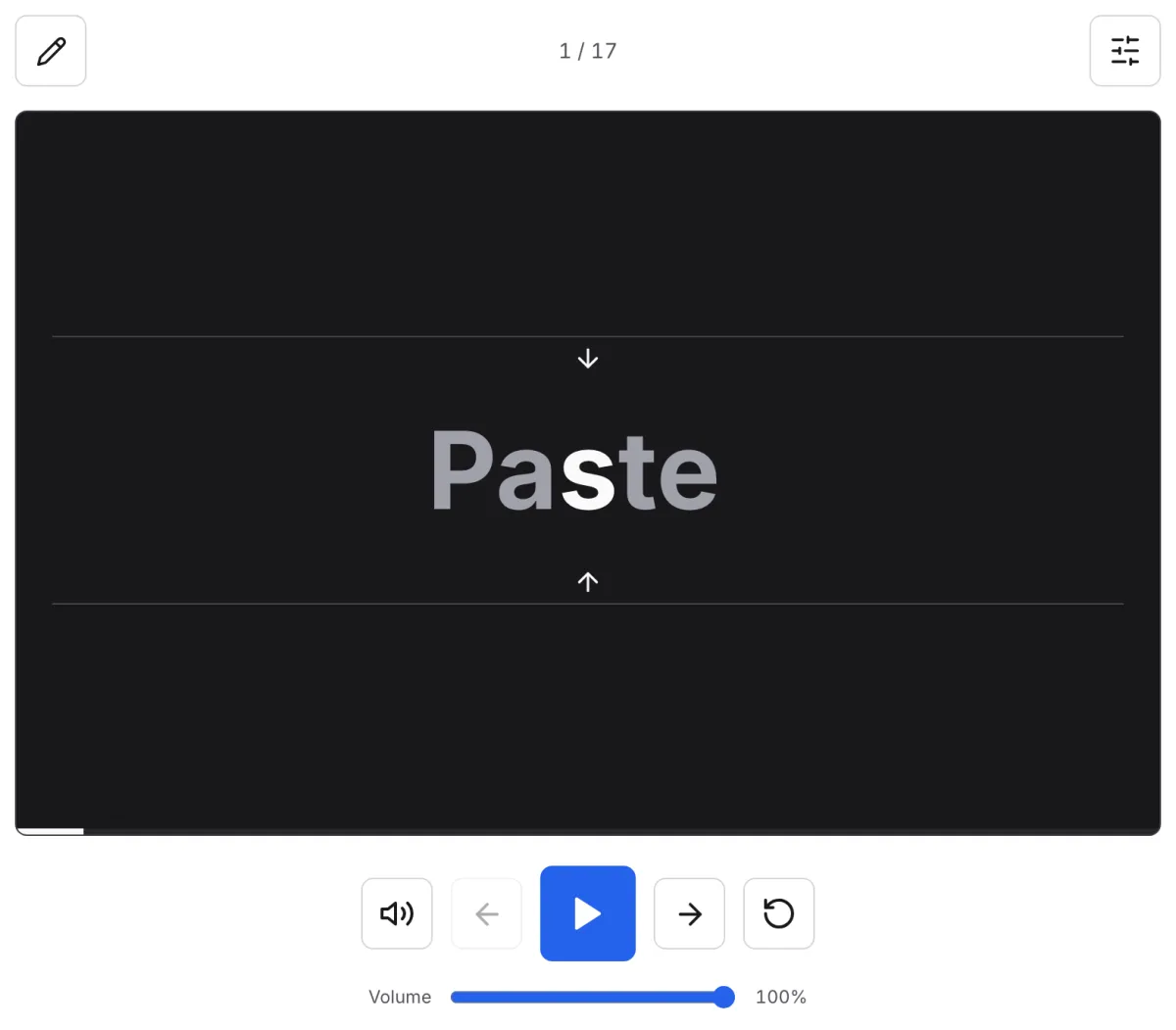
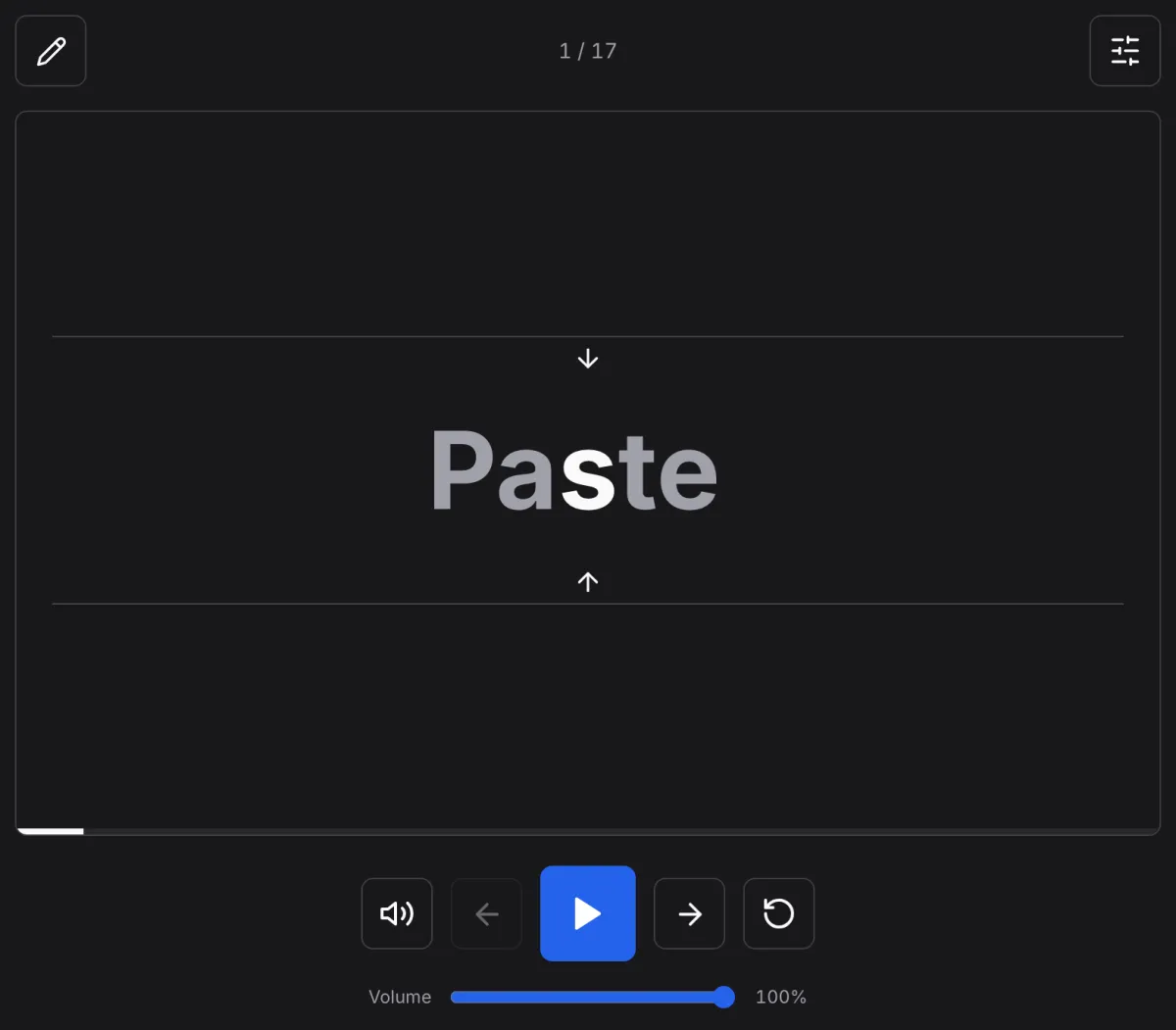
The pencil button takes you back to the text box if you want to change or replace the text. The reader does not save your text, so it is gone when you reload the page.
Start slower than you think
The speed slider in Settings runs from 80 to 700 words per minute. A high number is tempting, but the point is to understand what you read. Start at the default 240 and adjust in small steps:
- If you can say what the last paragraph was about, try 20 or 30 words per minute faster.
- If you keep pausing to go back, slow down.
- Read difficult material more slowly than easy material. A good speed for a novel may be far too fast for a contract.
The reader already slows down at punctuation. A word that ends a sentence stays on screen a little over twice as long as an ordinary word, and a word followed by a comma, semicolon or colon stays about one and a half times as long. Those pauses give each sentence a moment to land.
Use phrase mode when words feel disconnected
Single words strip away context. You see "not" without the word it changes, or a name without the verb that follows it. If you notice this, open Settings and set Show to Three words. Each step then shows a short phrase, held for one beat per word plus the usual pause if it ends in punctuation, so your overall pace stays about the same.
Use sentence mode for dense text
For study notes, technical writing, legal text or anything unfamiliar, set Show to One sentence. You lose some of the focus of single words, but you keep the full structure of each sentence. This can be a more comfortable way to work through hard material on a small screen.
Add audio if listening helps you follow
Audio is on by default if your browser supports speech. When you press Play, your browser's voice reads the text and the display moves to each word as it is spoken. If you would rather read in silence, press the speaker button to mute it. The text to speech guide explains how the audio works and what affects its timing.
Make the display comfortable
Open Settings to change:
- Typeface: System sans, Wide sans or Serif.
- Text size: up to 120 pixels. On a narrow screen the word shrinks to fit.
- Reading surface: Day or Night for the reading area. Night is the default, and your choice is remembered in this browser.
The dyslexia-friendly settings guide has suggestions for which combinations to try first.
Comprehension comes first
Word-by-word reading is a tool, not a contest. If you finish a passage and cannot remember what it said, the speed was too high or the mode was wrong. Slow down, switch to phrases or sentences, and reread. A pace you can keep up and understand is worth more than a big number on the slider.